VARIOglide è un variometro Bluetooth Low Energy
pensato per gli appassionati di volo libero. Compatto e leggero, si collega al tuo smartphone
e funziona come sensore esterno indipendente per l'app di volo XCTrack,
fornendo in tempo reale dati di pressione, altitudine e velocità verticale.
Progettato per un utilizzo hobbistico e ricreativo, il dispositivo è un accessorio utile
per chi pratica parapendio, deltaplano e altre discipline di volo libero e desidera
monitorare le proprie prestazioni con uno strumento semplice, personalizzabile e compatibile
con l'ecosistema XCTrack.
Il dispositivo offre:
Funzionamento come variometro BLE autonomo, compatibile con XCTrack
Allarmi sonori per salita e discesa con soglie personalizzabili
Due modalità audio: beep standard e beep progressivo (proporzionale alla velocità)
Invio opzionale di temperatura e tempo di attività a XCTrack
Configurazione completa via WebApp
Uso previsto e responsabilità
VARIOglide è un accessorio hobbistico per il monitoraggio dei dati barometrici
durante le attività ricreative di volo libero. Il dispositivo non è un sistema certificato
per la navigazione aerea, non sostituisce la strumentazione di volo omologata e non deve
essere utilizzato come unico riferimento per decisioni di volo.
L'utente è l'unico responsabile della propria sicurezza in volo e dell'uso appropriato
del dispositivo. Il produttore declina ogni responsabilità per danni diretti o indiretti
derivanti dall'utilizzo del prodotto. Vola sempre nel rispetto delle normative locali
e delle condizioni meteorologiche.
Specifiche tecniche
Componente
Dettagli
Sensore barometrico
MS5611 — risoluzione 0.012 mbar (circa 10 cm di altitudine)
Buzzer
Passivo — ~85 dB
Connettività
Bluetooth Low Energy (BLE)
Batteria
1200 mAh
Requisiti
Dispositivo VARIOglide
Smartphone Android con Bluetooth 4.0+ e Android 9 o superiore
App XCTrack (per la visualizzazione dei dati di volo)
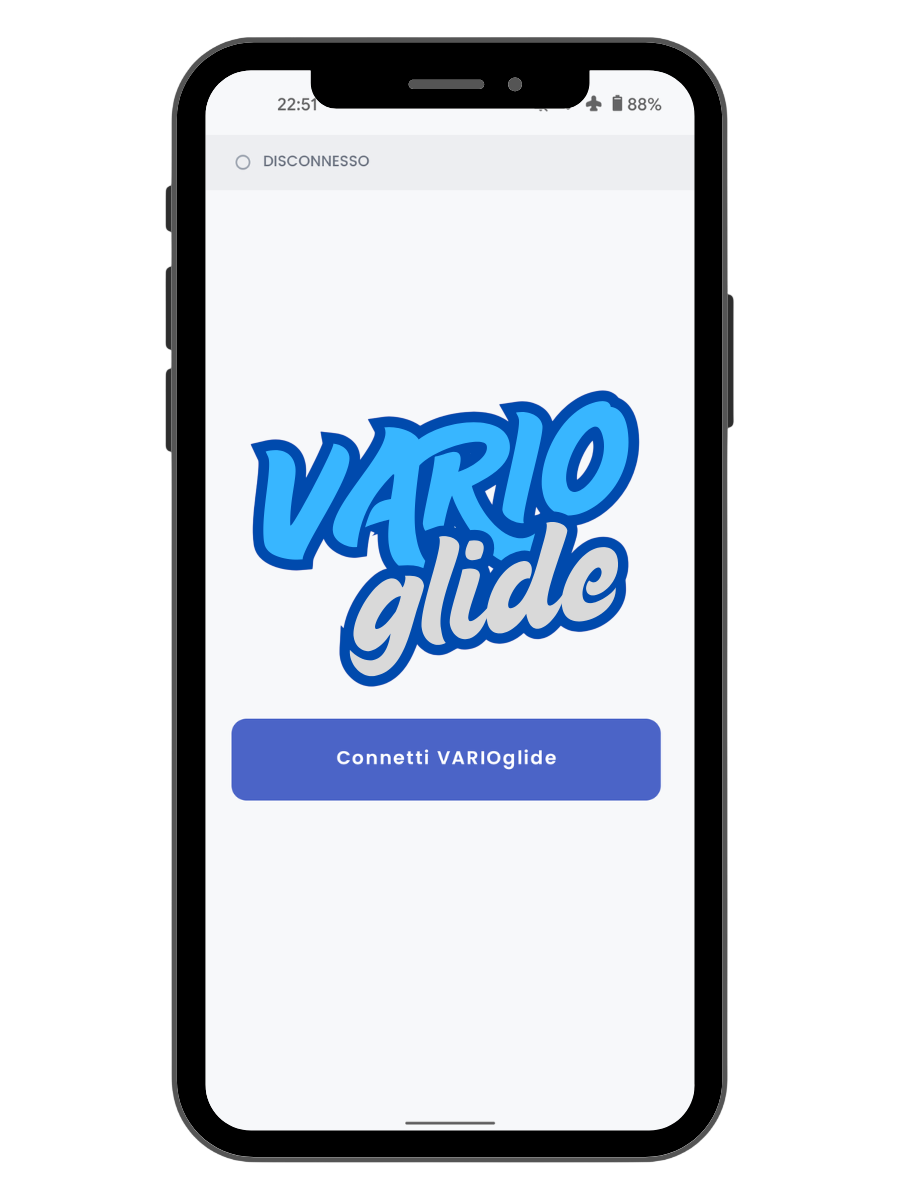
All'apertura della WebApp viene mostrata la schermata principale. In alto è presente
la barra di stato che indica lo stato della connessione Bluetooth.
Al centro il logo e il pulsante per avviare la connessione.
Schermata principale - dispositivo disconnesso
Connessione al dispositivo
Accendi il dispositivo VARIOglide e attendi il suono di avvio (tre toni ascendenti)
Apri la WebApp e premi il pulsante di connessione
La scansione dei dispositivi BLE nelle vicinanze inizierà automaticamente. Un indicatore mostrerà lo stato della ricerca
Una volta trovato, il dispositivo si connetterà automaticamente. La barra di stato diventerà verde con la scritta "CONNESSO"
Nota: Assicurati che il Bluetooth e la localizzazione siano attivi sul tuo smartphone.
La WebApp richiede un browser compatibile con Web Bluetooth (Chrome o Edge).
3 Configurazione
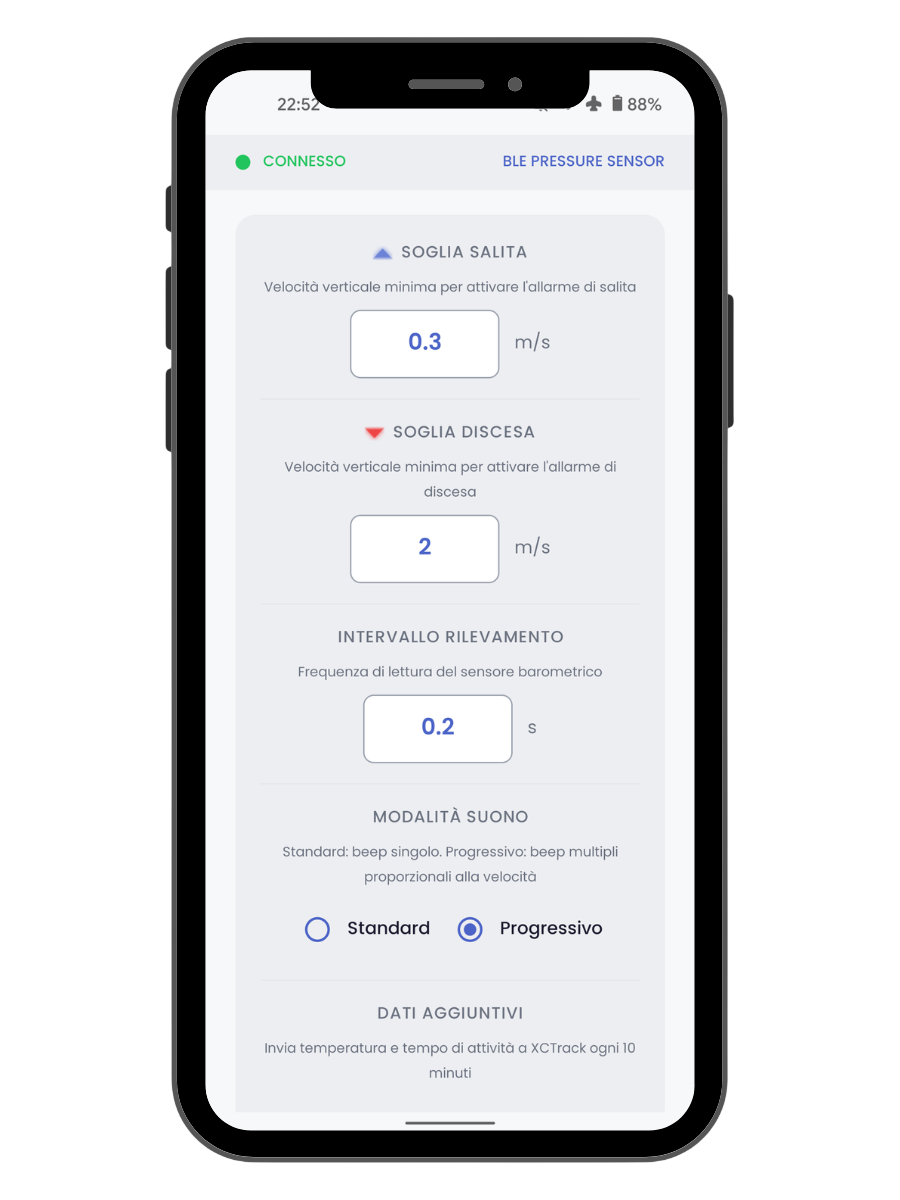
Una volta connesso, vengono mostrate la sezione Azioni rapide e la sezione
Configurazione. Premendo "Modifica configurazione" si apre il pannello
con tutti i parametri del sensore.
Pannello di configurazione - dispositivo connesso
Parametri configurabili
Parametro
Descrizione
Predefinito
Intervallo
Soglia salita
Velocità verticale minima per attivare l'allarme di salita
0.3 m/s
0.2 - 10.0 m/s
Soglia discesa
Velocità verticale minima per attivare l'allarme di discesa
2.0 m/s
0.5 - 20.0 m/s
Intervallo rilevamento
Frequenza di lettura del sensore barometrico
0.2 s
0.2 - 5.0 s
Modalità suono
Standard (beep singolo) oppure Progressivo (beep multipli proporzionali alla velocità)
Progressivo
-
Dati aggiuntivi
Invia temperatura e tempo di attività a XCTrack ogni 5 minuti
Invia
-
Azioni rapide
Ripristina predefiniti: riporta tutti i parametri ai valori di fabbrica
Spegni BLE: invia il comando di spegnimento Bluetooth al dispositivo
Attenzione: Dopo aver spento il Bluetooth, sarà necessario riavviare fisicamente
il dispositivo per potersi riconnettere.
4 XCTrack - Configurazione sensore
Per utilizzare il sensore durante il volo è necessario configurare XCTrack
per ricevere i dati dal dispositivo BLE.
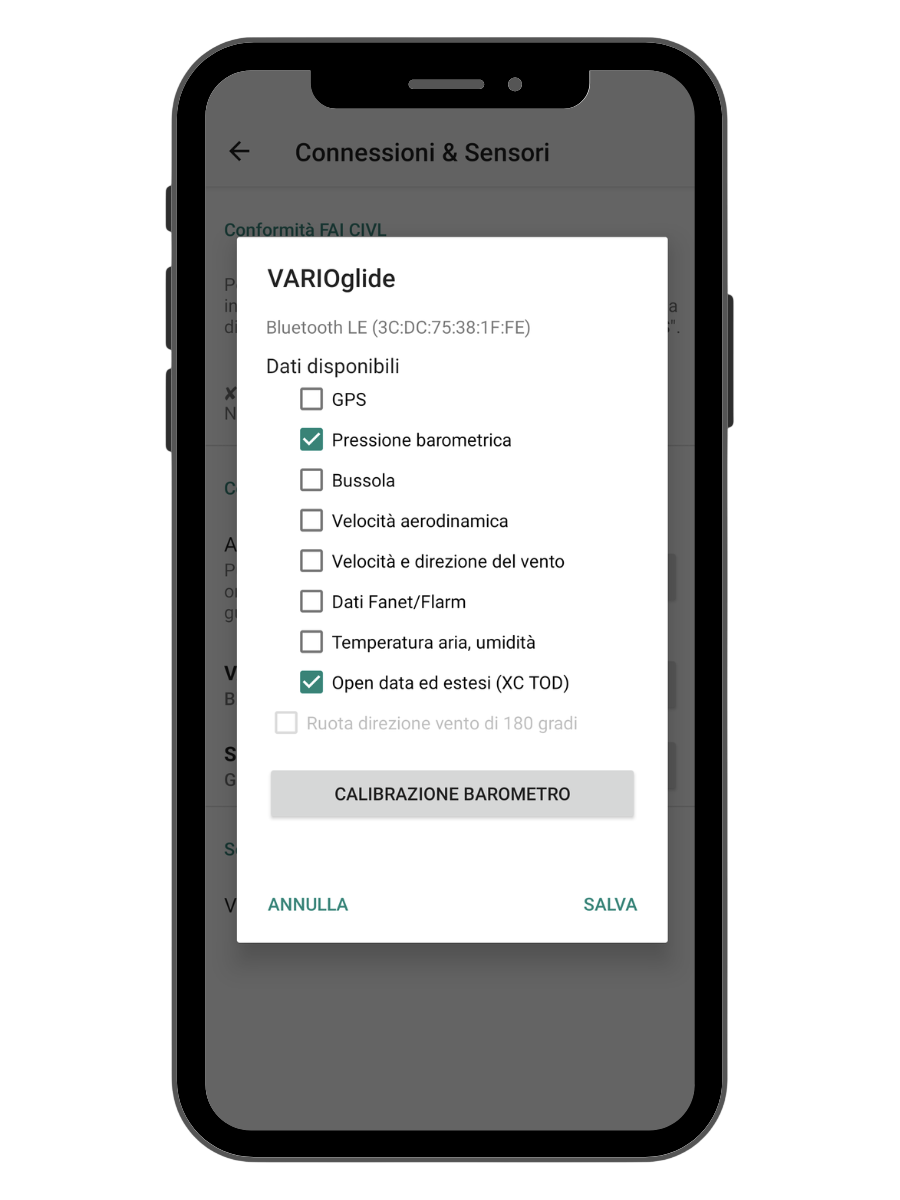
Apri XCTrack e vai in Preferenze → Connessioni & Sensori
Cerca il dispositivo "BLEPressureSensor/VARIOglide" nella lista dei sensori Bluetooth LE
Seleziona il dispositivo e abilita le seguenti opzioni:
Pressione barometrica (obbligatorio)
Open data ed estesi (XC TOD) (consigliato)
Premi "Salva" per confermare la configurazione
XCTrack - Configurazione del variometro
Suggerimento: Abilita "Open data ed estesi (XC TOD)" per ricevere anche
i dati di temperatura e tempo di attività direttamente nella schermata di volo.
5 XCTrack - Importazione layout
Per semplificare la configurazione di XCTrack, è disponibile un file di layout preconfigurato
(.xcfg) che imposta automaticamente le pagine di volo con i widget ottimizzati
per l'uso con VARIOglide.
Apri XCTrack e vai in Preferenze → Pagine e widget per XCTrack
Tocca il menu in alto a destra (tre puntini) e seleziona "Importa pagine da file"
Naviga fino al file .xcfg scaricato e selezionalo
Conferma l'importazione. Le nuove pagine saranno aggiunte al tuo layout corrente
Nota: L'importazione aggiunge le nuove pagine senza sovrascrivere quelle esistenti.
Puoi riordinare o rimuovere le pagine non necessarie dalle impostazioni del layout.
6 XCTrack - Dati in volo
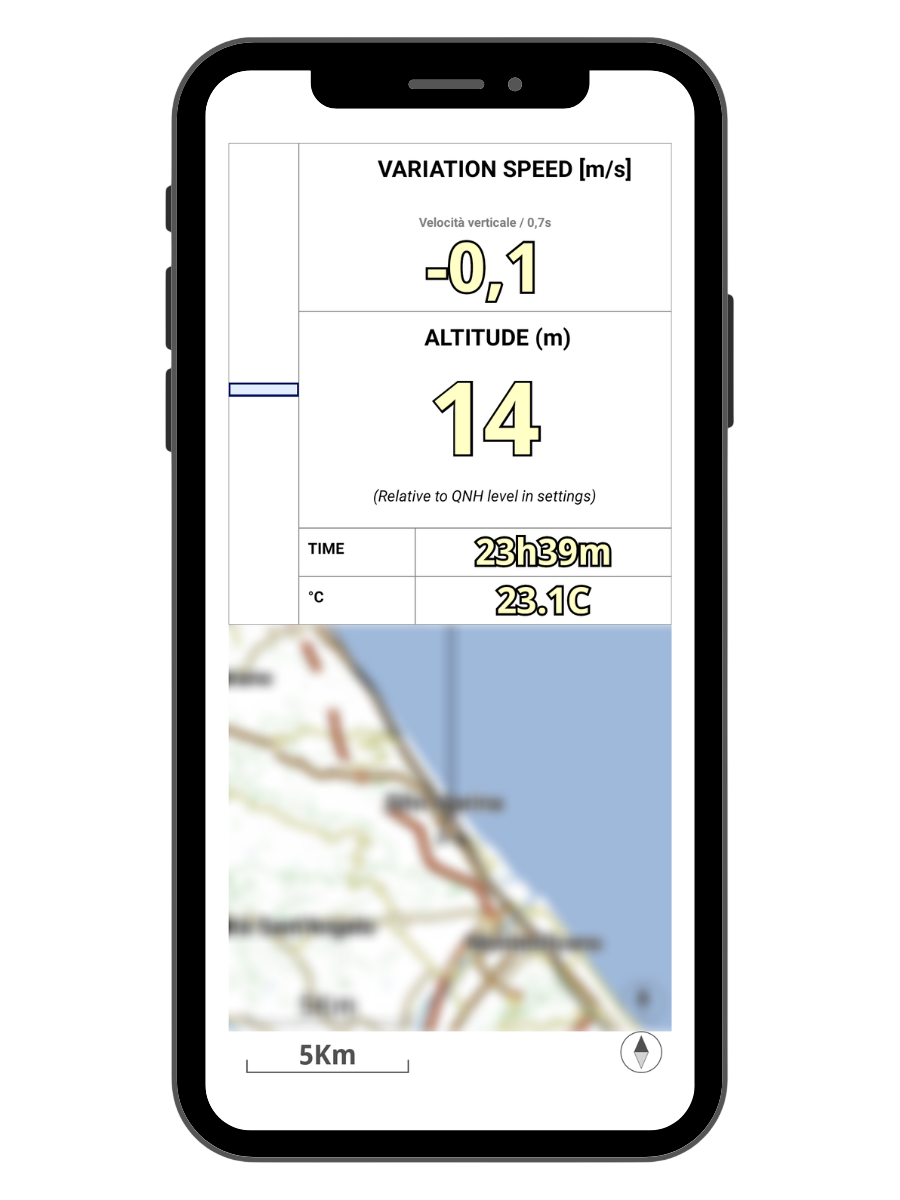
Una volta configurato, XCTrack mostrerà i dati ricevuti dal sensore in tempo reale.
La schermata di volo include:
Variation Speed: velocità verticale corrente in m/s
Altitude: altitudine barometrica relativa al QNH impostato
Time: tempo di attività del dispositivo (se "Dati aggiuntivi" è attivo)
Temperatura: temperatura rilevata dal sensore (se "Dati aggiuntivi" è attivo)
Mappa: posizione sulla mappa con traccia di volo
XCTrack - Visualizzazione dati in volo
7 Risoluzione problemi
Problema
Soluzione
Il dispositivo non viene trovato
Verifica che sia acceso (i tre toni di avvio devono suonare). Controlla che Bluetooth e localizzazione siano attivi sullo smartphone. Riavvia il dispositivo se necessario.
La connessione si interrompe
Assicurati di non essere troppo lontano dal dispositivo (portata BLE: ~10m). Evita interferenze da altri dispositivi Bluetooth.
XCTrack non riceve dati
Verifica che "Pressione barometrica" sia abilitata nelle impostazioni del sensore in XCTrack. Disconnetti e riconnetti il sensore.
Il variometro non suona
Controlla che le soglie di salita/discesa siano configurate correttamente. La soglia di salita deve essere un valore positivo, la soglia di discesa un valore positivo che verrà applicato come negativo.
Configurazione non salvata
Assicurati che il dispositivo sia connesso prima di premere "Salva configurazione". Verifica di aver inserito valori nell'intervallo consentito.
La WebApp non funziona
Il Web Bluetooth non è supportato su Safari (iOS/macOS) e Firefox. Usa Google Chrome o Microsoft Edge su desktop o Android.
1 Introduction
VARIOglide is a Bluetooth Low Energy variometer
designed for free flight enthusiasts. Compact and lightweight, it connects to your smartphone
and works as a standalone external sensor for the XCTrack flight app,
providing real-time pressure, altitude and vertical speed data.
Designed for hobby and recreational use, the device is a handy accessory
for those who practice paragliding, hang gliding and other free flight disciplines and wish
to monitor their performance with a simple, customizable tool compatible
with the XCTrack ecosystem.
The device offers:
Standalone BLE variometer, compatible with XCTrack
Audible climb and sink alarms with customizable thresholds
Two audio modes: standard beep and progressive beep (proportional to speed)
Optional temperature and uptime data sent to XCTrack
Full configuration via WebApp
Intended use and liability
VARIOglide is a hobby accessory for monitoring barometric data
during recreational free flight activities. The device is not a certified
air navigation system, does not replace approved flight instruments and must not
be used as the sole reference for flight decisions.
The user is solely responsible for their own safety in flight and for the appropriate use
of the device. The manufacturer disclaims all liability for direct or indirect damages
arising from the use of the product. Always fly in compliance with local regulations
and weather conditions.
Technical specifications
Component
Details
Barometric sensor
MS5611 — resolution 0.012 mbar (approx. 10 cm altitude)
Buzzer
Passive — ~85 dB
Connectivity
Bluetooth Low Energy (BLE)
Battery
1200 mAh
Requirements
VARIOglide device
Android smartphone with Bluetooth 4.0+ and Android 9 or higher
When opening the WebApp, the home screen is displayed. At the top there is
a status bar showing the Bluetooth connection status.
In the center, the logo and the button to start the connection.
Home screen - device disconnected
Connecting to the device
Turn on the VARIOglide device and wait for the startup sound (three ascending tones)
Open the WebApp and press the connection button
Scanning for nearby BLE devices will start automatically. An indicator will show the search status
Once found, the device will connect automatically. The status bar will turn green showing "CONNECTED"
Note: Make sure Bluetooth and location services are enabled on your smartphone.
The WebApp requires a Web Bluetooth compatible browser (Chrome or Edge).
3 Configuration
Once connected, the Quick Actions and Configuration sections are displayed.
Press "Edit configuration" to open the panel with all sensor parameters.
Configuration panel - device connected
Configurable parameters
Parameter
Description
Default
Range
Climb threshold
Minimum vertical speed to trigger the climb alarm
0.3 m/s
0.2 - 10.0 m/s
Sink threshold
Minimum vertical speed to trigger the sink alarm
2.0 m/s
0.5 - 20.0 m/s
Detection interval
Barometric sensor reading frequency
0.2 s
0.2 - 5.0 s
Sound mode
Standard (single beep) or Progressive (multiple beeps proportional to speed)
Progressive
-
Additional data
Send temperature and uptime to XCTrack every 5 minutes
Send
-
Quick actions
Restore defaults: resets all parameters to factory values
Turn off BLE: sends the Bluetooth shutdown command to the device
Warning: After turning off Bluetooth, you will need to physically restart
the device to reconnect.
4 XCTrack - Sensor configuration
To use the sensor during flight, you need to configure XCTrack
to receive data from the BLE device.
Open XCTrack and go to Preferences → Connections & Sensors
Find the device "BLEPressureSensor/VARIOglide" in the Bluetooth LE sensors list
Select the device and enable the following options:
Barometric pressure (required)
Open data and extended (XC TOD) (recommended)
Press "Save" to confirm the configuration
XCTrack - Variometer configuration
Tip: Enable "Open data and extended (XC TOD)" to also receive
temperature and uptime data directly on the flight screen.
5 XCTrack - Layout import
To simplify XCTrack configuration, a preconfigured layout file
(.xcfg) is available that automatically sets up the flight pages with widgets optimized
for use with VARIOglide.
Open XCTrack and go to Preferences → Pages and widgets for XCTrack
Tap the menu in the top right corner (three dots) and select "Import pages from file"
Navigate to the downloaded .xcfg file and select it
Confirm the import. The new pages will be added to your current layout
Note: The import adds new pages without overwriting existing ones.
You can reorder or remove unnecessary pages from the layout settings.
6 XCTrack - In-flight data
Once configured, XCTrack will display the data received from the sensor in real time.
The flight screen includes:
Variation Speed: current vertical speed in m/s
Altitude: barometric altitude relative to the set QNH
Time: device uptime (if "Additional data" is enabled)
Temperature: temperature measured by the sensor (if "Additional data" is enabled)
Map: position on the map with flight track
XCTrack - In-flight data display
7 Troubleshooting
Problem
Solution
Device not found
Make sure it is turned on (the three startup tones should sound). Check that Bluetooth and location are enabled on your smartphone. Restart the device if necessary.
Connection drops
Make sure you are not too far from the device (BLE range: ~10m). Avoid interference from other Bluetooth devices.
XCTrack not receiving data
Verify that "Barometric pressure" is enabled in the sensor settings in XCTrack. Disconnect and reconnect the sensor.
Variometer not sounding
Check that the climb/sink thresholds are configured correctly. The climb threshold must be a positive value, the sink threshold a positive value that will be applied as negative.
Configuration not saved
Make sure the device is connected before pressing "Save configuration". Verify that entered values are within the allowed range.
WebApp not working
Web Bluetooth is not supported on Safari (iOS/macOS) and Firefox. Use Google Chrome or Microsoft Edge on desktop or Android.
1 Einführung
VARIOglide ist ein Bluetooth-Low-Energy-Variometer
für Freiflug-Enthusiasten. Kompakt und leicht, verbindet es sich mit deinem Smartphone
und funktioniert als eigenständiger externer Sensor für die Flug-App XCTrack,
mit Echtzeit-Daten zu Druck, Höhe und Vertikalgeschwindigkeit.
Für den Hobby- und Freizeitgebrauch konzipiert, ist das Gerät ein praktisches Zubehör
für Gleitschirm-, Drachen- und andere Freiflugpiloten, die ihre Leistung
mit einem einfachen, anpassbaren und XCTrack-kompatiblen Werkzeug überwachen möchten.
Das Gerät bietet:
Eigenständiges BLE-Variometer, kompatibel mit XCTrack
Akustische Steig- und Sinkalarme mit einstellbaren Schwellenwerten
Zwei Audiomodi: Standard-Piepton und progressiver Piepton (proportional zur Geschwindigkeit)
Optionale Übermittlung von Temperatur und Betriebszeit an XCTrack
Vollständige Konfiguration über die WebApp
Bestimmungsgemäßer Gebrauch und Haftung
VARIOglide ist ein Hobby-Zubehör zur Überwachung barometrischer Daten
bei Freizeit-Flugaktivitäten. Das Gerät ist kein zertifiziertes
Luftnavigationssystem, ersetzt keine zugelassenen Fluginstrumente und darf nicht
als alleinige Referenz für Flugentscheidungen verwendet werden.
Der Benutzer ist allein verantwortlich für seine eigene Sicherheit im Flug und für die
sachgemäße Nutzung des Geräts. Der Hersteller übernimmt keine Haftung für direkte oder indirekte
Schäden, die aus der Nutzung des Produkts entstehen. Fliege stets unter Beachtung der
lokalen Vorschriften und Wetterbedingungen.
Technische Daten
Komponente
Details
Barometrischer Sensor
MS5611 — Auflösung 0,012 mbar (ca. 10 cm Höhe)
Buzzer
Passiv — ~85 dB
Konnektivität
Bluetooth Low Energy (BLE)
Akku
1200 mAh
Voraussetzungen
VARIOglide-Gerät
Android-Smartphone mit Bluetooth 4.0+ und Android 9 oder höher
Beim Öffnen der WebApp wird der Startbildschirm angezeigt. Oben befindet sich
die Statusleiste mit dem Bluetooth-Verbindungsstatus.
In der Mitte das Logo und die Schaltfläche zum Starten der Verbindung.
Startbildschirm - Gerät getrennt
Verbindung zum Gerät
Schalte das VARIOglide-Gerät ein und warte auf den Startton (drei aufsteigende Töne)
Öffne die WebApp und drücke die Verbindungstaste
Die Suche nach BLE-Geräten in der Nähe startet automatisch. Ein Indikator zeigt den Suchstatus an
Sobald gefunden, verbindet sich das Gerät automatisch. Die Statusleiste wird grün mit der Anzeige „VERBUNDEN“
Hinweis: Stelle sicher, dass Bluetooth und Standortdienste auf deinem Smartphone aktiviert sind.
Die WebApp benötigt einen Web-Bluetooth-kompatiblen Browser (Chrome oder Edge).
3 Konfiguration
Nach der Verbindung werden die Bereiche Schnellaktionen und Konfiguration angezeigt.
Drücke „Konfiguration bearbeiten“, um das Panel mit allen Sensorparametern zu öffnen.
Konfigurationspanel - Gerät verbunden
Konfigurierbare Parameter
Parameter
Beschreibung
Standard
Bereich
Steigschwelle
Minimale Vertikalgeschwindigkeit für den Steigalarm
0,3 m/s
0,2 - 10,0 m/s
Sinkschwelle
Minimale Vertikalgeschwindigkeit für den Sinkalarm
2,0 m/s
0,5 - 20,0 m/s
Messintervall
Lesefrequenz des barometrischen Sensors
0,2 s
0,2 - 5,0 s
Tonmodus
Standard (einzelner Piepton) oder Progressiv (mehrere Pieptöne proportional zur Geschwindigkeit)
Progressiv
-
Zusatzdaten
Temperatur und Betriebszeit alle 5 Minuten an XCTrack senden
Senden
-
Schnellaktionen
Standardwerte wiederherstellen: setzt alle Parameter auf Werkswerte zurück
BLE ausschalten: sendet den Bluetooth-Abschaltbefehl an das Gerät
Achtung: Nach dem Ausschalten von Bluetooth muss das Gerät
physisch neu gestartet werden, um sich wieder zu verbinden.
4 XCTrack - Sensorkonfiguration
Um den Sensor während des Fluges zu nutzen, muss XCTrack
für den Empfang der Daten vom BLE-Gerät konfiguriert werden.
Öffne XCTrack und gehe zu Einstellungen → Verbindungen & Sensoren
Suche das Gerät „BLEPressureSensor/VARIOglide“ in der Liste der Bluetooth-LE-Sensoren
Wähle das Gerät aus und aktiviere folgende Optionen:
Barometrischer Druck (erforderlich)
Offene und erweiterte Daten (XC TOD) (empfohlen)
Drücke „Speichern“ zur Bestätigung der Konfiguration
XCTrack - Variometer-Konfiguration
Tipp: Aktiviere „Offene und erweiterte Daten (XC TOD)“, um auch
Temperatur- und Betriebszeitdaten direkt auf dem Flugbildschirm zu erhalten.
5 XCTrack - Layout importieren
Zur Vereinfachung der XCTrack-Konfiguration steht eine vorkonfigurierte Layout-Datei
(.xcfg) zur Verfügung, die automatisch die Flugseiten mit optimierten Widgets
für die Nutzung mit VARIOglide einrichtet.
Öffne XCTrack und gehe zu Einstellungen → Seiten und Widgets für XCTrack
Tippe auf das Menü oben rechts (drei Punkte) und wähle „Seiten aus Datei importieren“
Navigiere zur heruntergeladenen .xcfg-Datei und wähle sie aus
Bestätige den Import. Die neuen Seiten werden deinem aktuellen Layout hinzugefügt
Hinweis: Der Import fügt neue Seiten hinzu, ohne bestehende zu überschreiben.
Du kannst Seiten in den Layout-Einstellungen neu anordnen oder entfernen.
6 XCTrack - Flugdaten
Nach der Konfiguration zeigt XCTrack die vom Sensor empfangenen Daten in Echtzeit an.
Der Flugbildschirm enthält:
Vertikalgeschwindigkeit: aktuelle Vertikalgeschwindigkeit in m/s
Höhe: barometrische Höhe relativ zum eingestellten QNH
Zeit: Betriebszeit des Geräts (wenn „Zusatzdaten“ aktiviert ist)
Temperatur: vom Sensor gemessene Temperatur (wenn „Zusatzdaten“ aktiviert ist)
Karte: Position auf der Karte mit Flugspur
XCTrack - Flugdatenanzeige
7 Fehlerbehebung
Problem
Lösung
Gerät wird nicht gefunden
Stelle sicher, dass es eingeschaltet ist (die drei Starttöne müssen ertönen). Prüfe, ob Bluetooth und Standort auf deinem Smartphone aktiviert sind. Starte das Gerät bei Bedarf neu.
Verbindung bricht ab
Stelle sicher, dass du nicht zu weit vom Gerät entfernt bist (BLE-Reichweite: ~10 m). Vermeide Störungen durch andere Bluetooth-Geräte.
XCTrack empfängt keine Daten
Überprüfe, ob „Barometrischer Druck“ in den Sensoreinstellungen in XCTrack aktiviert ist. Trenne den Sensor und verbinde ihn erneut.
Variometer gibt keinen Ton
Prüfe, ob die Steig-/Sinkschwellen korrekt konfiguriert sind. Die Steigschwelle muss ein positiver Wert sein, die Sinkschwelle ein positiver Wert, der als negativer angewendet wird.
Konfiguration nicht gespeichert
Stelle sicher, dass das Gerät verbunden ist, bevor du „Konfiguration speichern“ drückst. Überprüfe, ob die eingegebenen Werte im zulässigen Bereich liegen.
WebApp funktioniert nicht
Web Bluetooth wird auf Safari (iOS/macOS) und Firefox nicht unterstützt. Verwende Google Chrome oder Microsoft Edge auf Desktop oder Android.